
Live translation for video meetings: captions and summary notes from your PC audio alone
Listening, taking notes and answering all at once in a call with overseas partners is hard every time. You can hear them, but your hands can't keep up — and by the end, half the decisions are already slipping away.

There are three criteria for live translation in video meetings. Do captions and translation flow from PC audio directly, without connecting to the meeting app? Does it work the same way when you switch between Zoom, Teams and Meet? Can you check summary items against the source captions and the original audio?
Without these, you reconfigure everything every time the platform changes, and replay the recording from the start to find what you missed.
1. Why capturing PC audio directly works with any meeting app
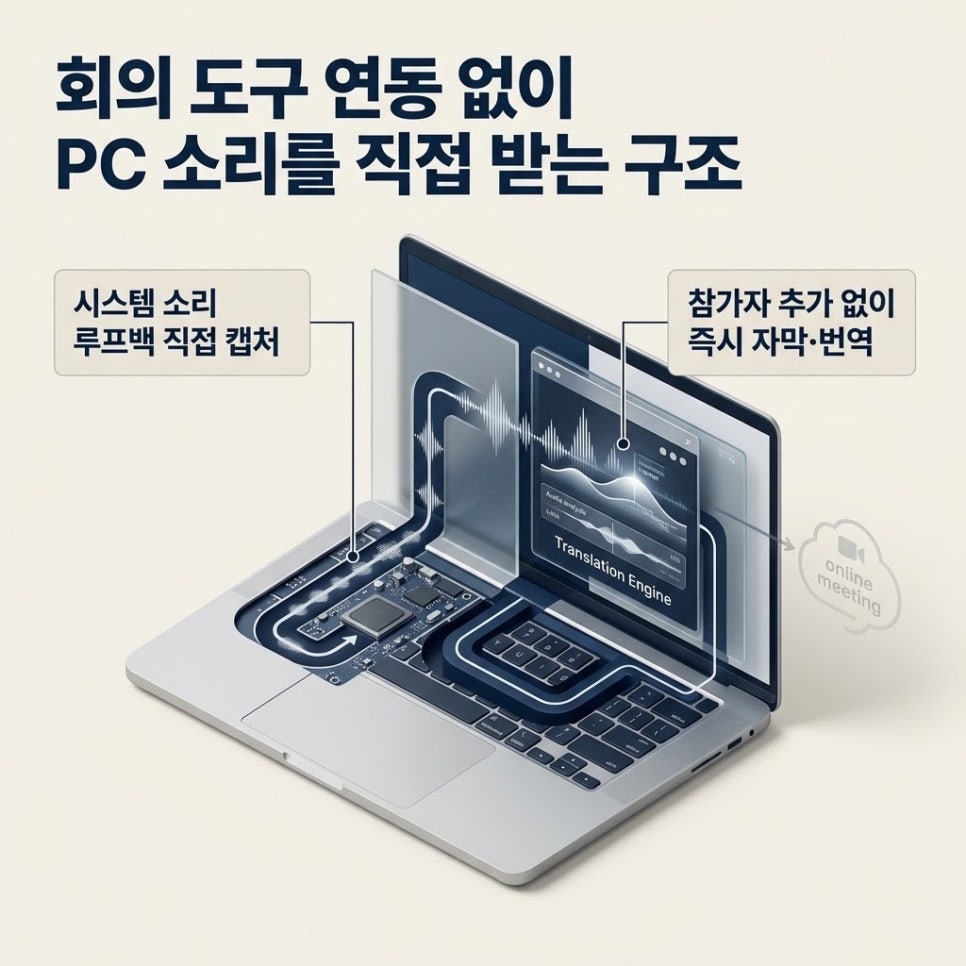
BridgeHere doesn't connect to Zoom, Teams or Meet — the app captures the sound from your PC speakers directly through Windows system audio capture (loopback). So any meeting that plays sound on your PC works the same way; in-person meetings and lectures use the microphone, and you can capture both when needed. Choose the meeting languages and speech is translated into the language you want.
The Free plan gives you 120 minutes every month (live recording and file transcription combined) with no card required, and paid plans give you more room if you meet often.
2. How PC audio becomes captions and a summary note
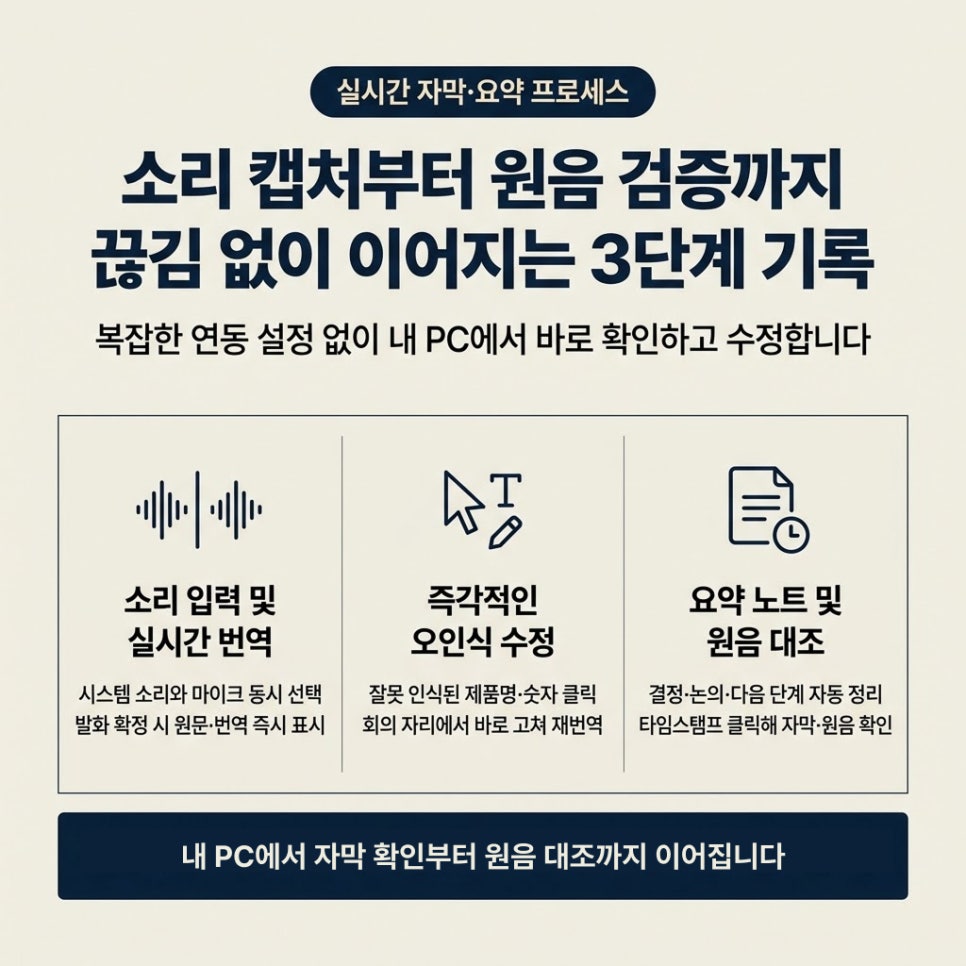
When you start a meeting, pick system audio for the other side's voices, and add the microphone if you want your own voice recorded too. While someone is speaking, the sentence first shows as “Recognizing”, and once the utterance is final, the original and the translation appear together. Click a misheard product name or number to fix it on the spot and regenerate the translation.
After the meeting, tap “Create summary” to get the headline, decisions, discussion and next steps organized from the captions. Tap a summary item with a source time to jump to its caption, and check the original audio for that part if you have the local recording.
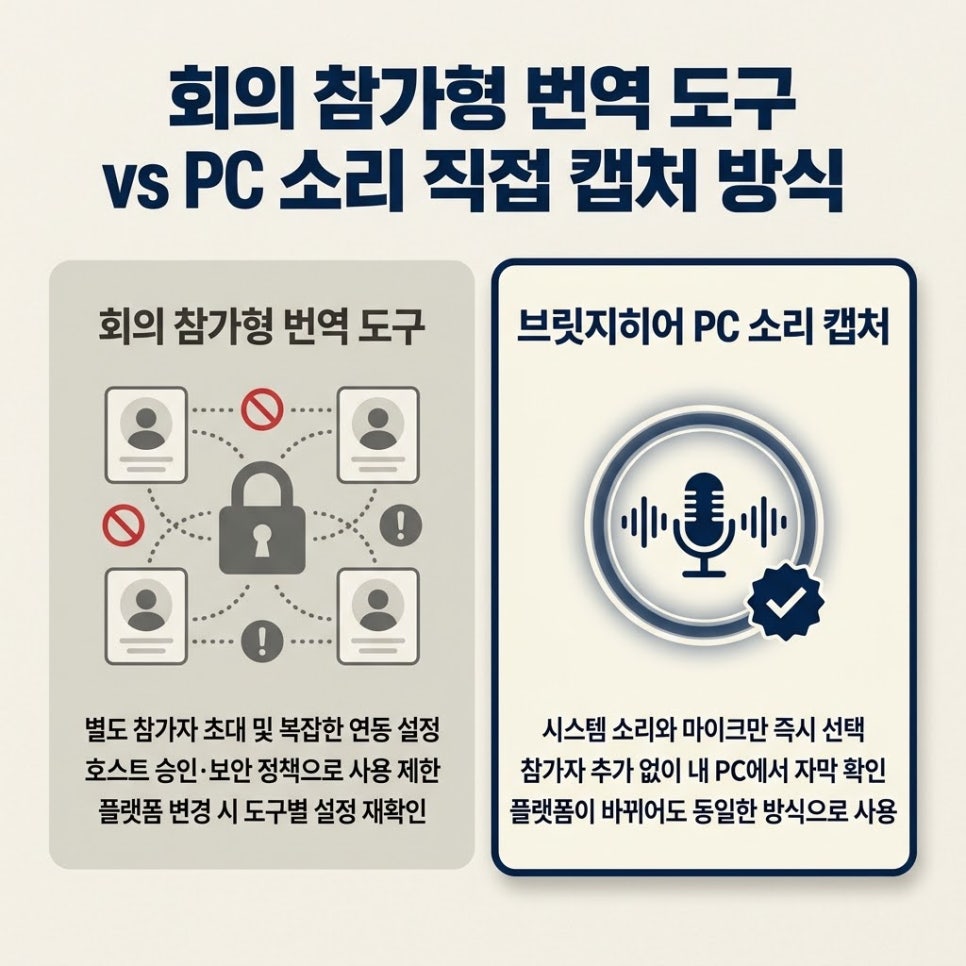
Translation tools that join the meeting
- Setup: invite a separate participant or configure an integration
- During the meeting: may be restricted by host approval or company policy
- Switching platforms: check the settings again for each meeting app
BridgeHere PC audio capture
- Setup: choose system audio, plus the microphone if needed
- During the meeting: see captions and translation on your own PC, no extra participant
- Switching platforms: if the sound plays on your PC, it works the same way
3. Three criteria to check before you adopt a tool
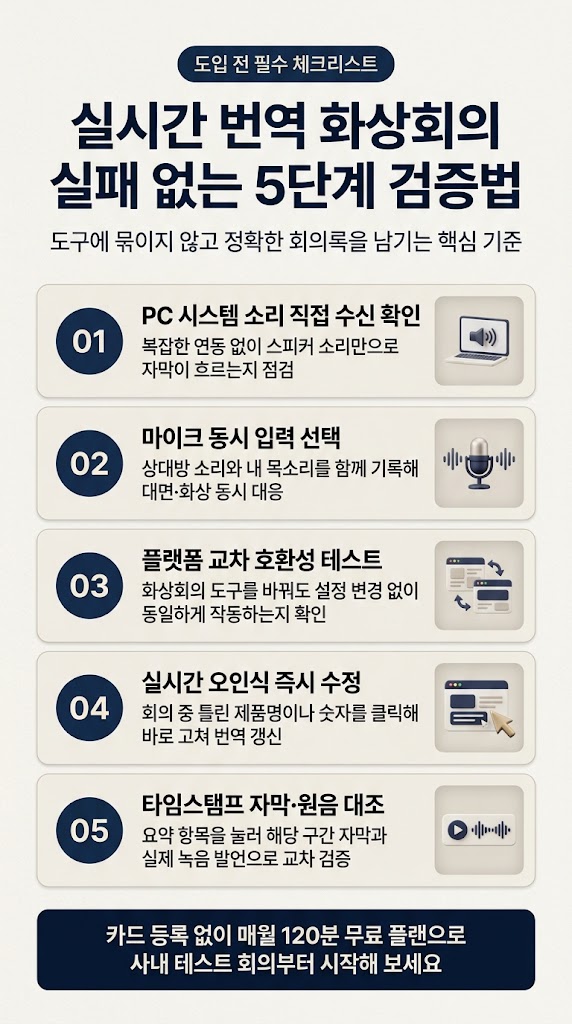
These are the three things I look at first in any translation tool.
First, how it gets the audio. See whether captions appear from PC audio just by opening the app and choosing an audio input, with no integration setup.
Second, switch platforms. Test in Zoom, then open Teams or Meet and see whether captions appear with the same audio input — you'll know right away whether it's tied to one tool.
Third, tap the summary items after the meeting. Check that an item takes you to its caption and, if you have the local recording, that you can hear what was actually said in that part.
- Q1.Can I use it if the other company blocks outside apps from joining meetings?
- A1.BridgeHere doesn't join as a participant — it captures audio on your own PC — so no extra account appears in the participant list. If transcription or recording is restricted in a meeting, though, check the other company's policy and your own security rules first.
- Q2.If it only captures PC audio, won't my own voice be left out?
- A2.The other side's voices come in through system audio; to record your own voice too, also select the microphone input.
- Q3.Captions and translation appear slightly after people speak. Is something wrong?
- A3.While someone is speaking it shows “Recognizing”, and the original and translation are completed once the utterance is final. Finalizing before the speaker finishes could change the meaning.
Video-meeting translation tools get tied to a platform because they can only hear the audio from inside the meeting app. Just check whether captions appear from PC audio without adding a participant, whether it stays the same when you switch platforms, and whether summaries can be compared with the source captions and audio.
You can start with the Free plan's 120 minutes a month, no card required — so before an important client meeting, run an internal test meeting and check the participant list and audio input first.