
Live captions for multilingual meetings: automatic language detection, translation and summary notes
When Korean and English alternate in one meeting, resetting the caption language every time the speaker changes gets frustrating. Following the other side's English while taking notes, you miss what you meant to say when it's your turn — and end up re-checking the decisions afterwards.
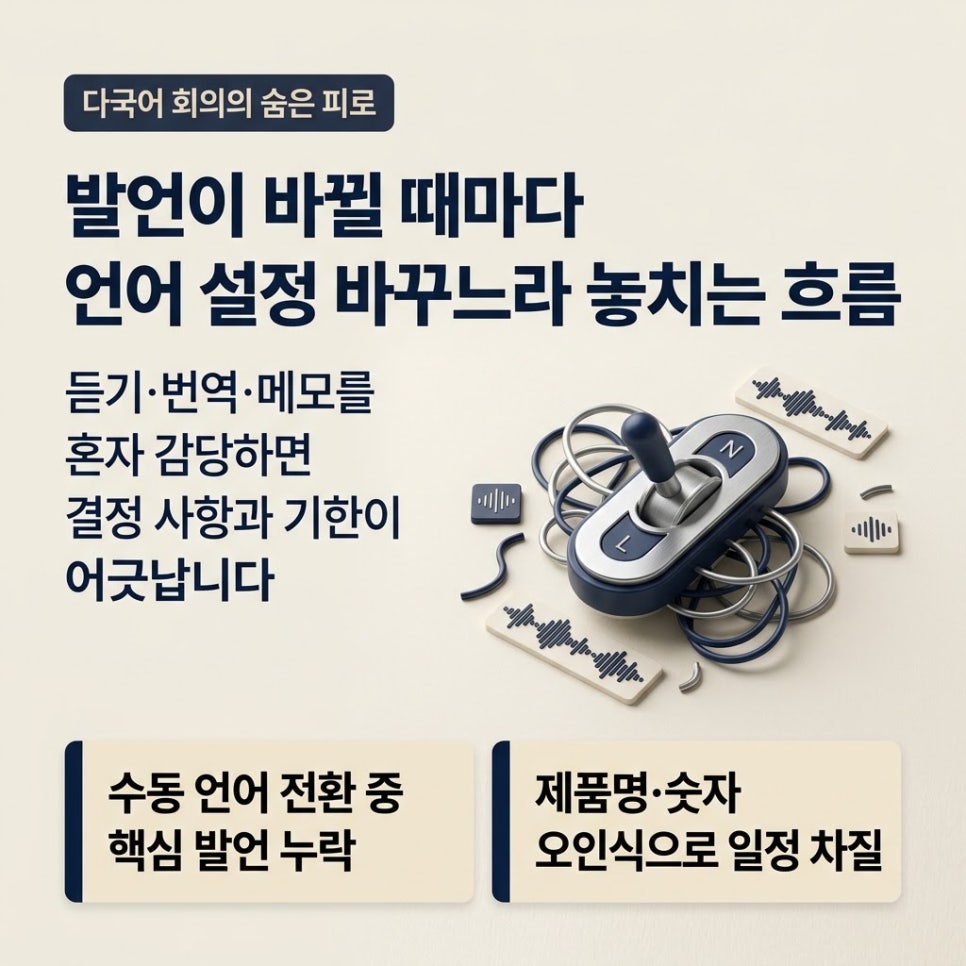
There are three criteria to check for live captions in multilingual meetings. With Korean and English selected as meeting languages, does the translation direction follow the spoken language? When you fix a misheard caption, is the translation regenerated? And can you check the summary against the source captions and the original audio?
Miss any one of them and product names or numbers get recorded wrong — and two teams' schedules drift apart over a misunderstood owner or deadline.
1. Why picking and switching languages every meeting wears people out first
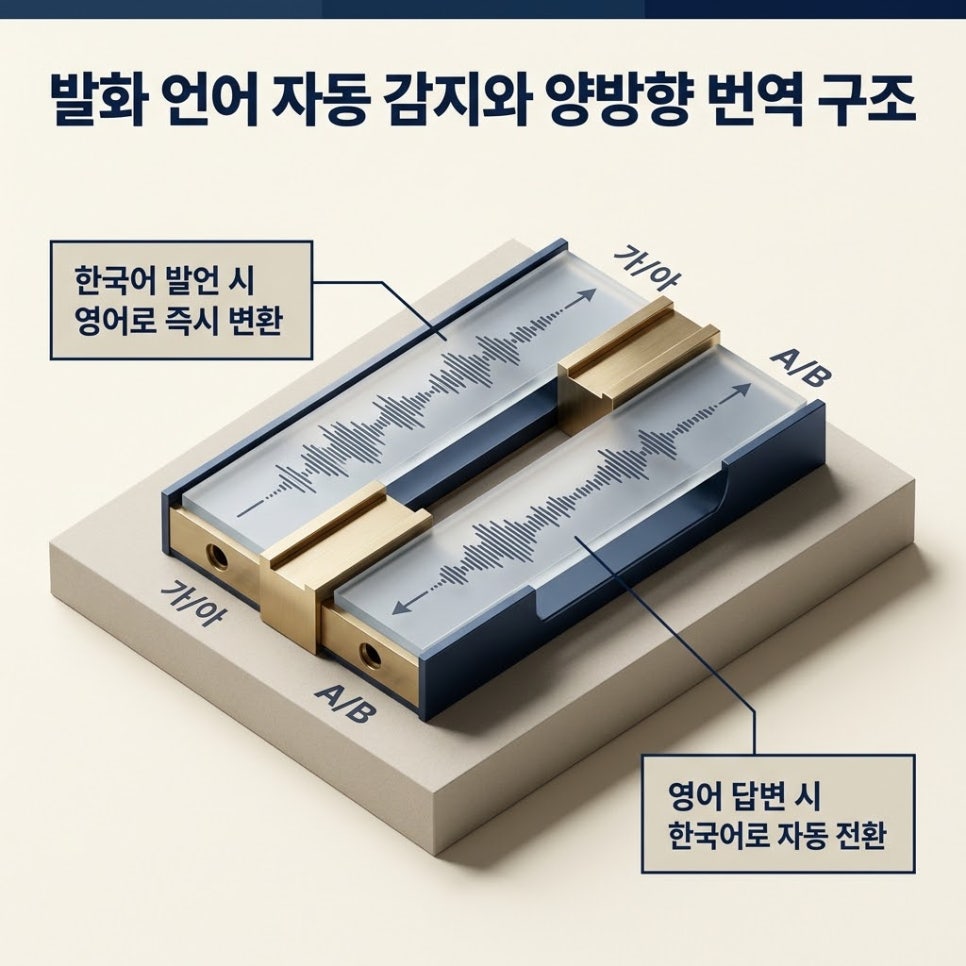
The moment a local manager explains something in Korean and an overseas partner answers in English, it's easy to lose the thread while changing settings.
In BridgeHere, select Korean and English as meeting languages and the app detects the spoken language — Korean speech is translated into English, and English speech into Korean. Google Calendar integration is optional, but if you start from an event, the translation languages and custom terms set for that event are applied automatically.
2. How one caption line becomes the original plus its translation
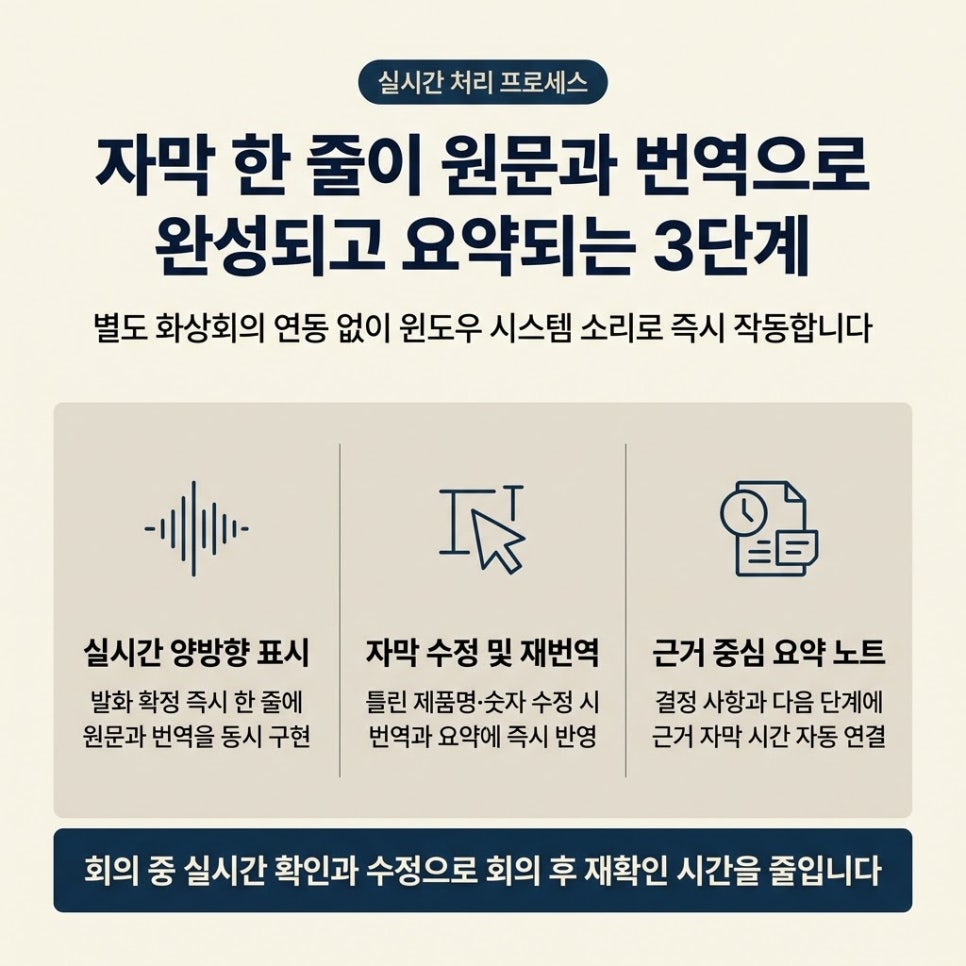
Without connecting to Zoom, Teams or Meet, BridgeHere takes Windows system audio and turns it into live captions and translation. While someone is speaking, the sentence first shows as “Recognizing”; once the utterance is final, the original and the translation appear on one line. This is where live translation, with automatic detection of the meeting language, does its work.
If an accent or jargon causes a product name or number to be misheard, fix it right in the caption — the translation is regenerated and carried into the summary. After the meeting, tap “Create summary” to get a note organized into headline, decisions, discussion and next steps, with a source caption time on each item.
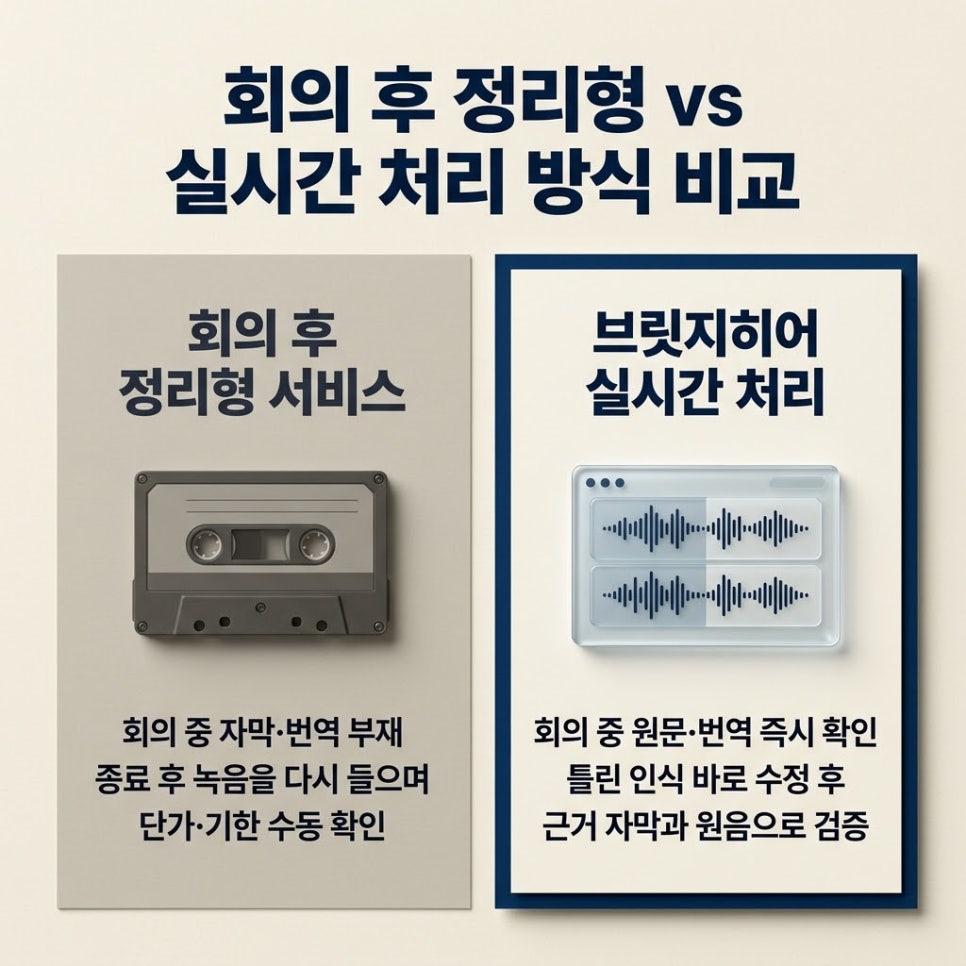
Services that organize after the meeting
- Setup: record the meeting or upload a file afterwards
- During the meeting: no captions or translation
- After the meeting: replay to check prices, deadlines and decisions
BridgeHere real-time processing
- Setup: choose meeting languages and audio input; can start from a calendar event
- During the meeting: see the original captions and translation, fix misrecognitions on the spot
- After the meeting: create a summary and re-check against source captions and audio
3. Three things to check in your first meeting
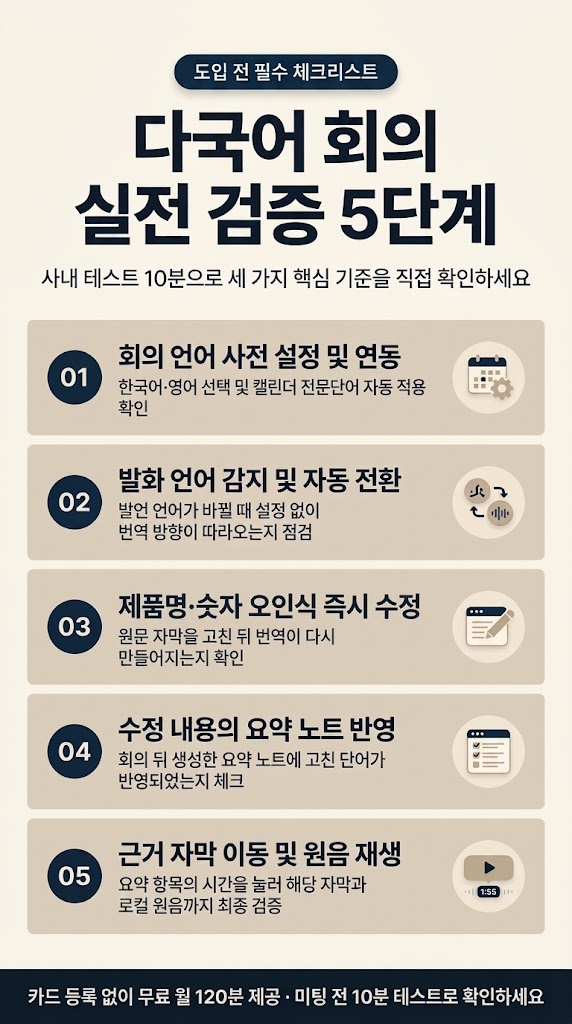
First, see whether the translation direction follows when the spoken language changes, with no settings to touch.
Second, deliberately fix one product name or number. Check that you can regenerate the translation after editing the original caption, and that the correction shows up in the summary you create afterwards.
Third, tap a summary item with a source time and check that it jumps to its caption — and, if you have the local recording, that you can hear the original audio for that part.
- Q1.In a meeting that mixes Korean and English, do I have to keep changing the language setting?
- A1.No. The app detects the spoken language and the translation direction changes on its own, so you only set the meeting languages once.
- Q2.Can I write up the meeting from the summary note alone?
- A2.It's great for getting the overall flow quickly, but complete accuracy of automatically generated results can't be guaranteed. For owners, deadlines and prices, tap the time shown and check the source captions and audio.
- Q3.What if captions are wrong because of an English accent or a product name?
- A3.Recognition results can vary with pronunciation, microphone setup and background noise. Add product names and technical terms before the meeting; terms added or edited during the meeting apply to the translations that follow. Translations already made can be corrected by checking the original and translating again.
People miss things in multilingual meetings not because of language skills, but because one person handles listening, translating and note-taking at once and only checks afterwards. The criteria: whether the translation direction follows a language change, whether caption fixes carry into the translation and summary, and whether the summary's sources can be checked against captions and audio.
It's free for 120 minutes a month (live recording and file transcription combined), no card required — so rather than switching it on for the first time in an important meeting, try a 10-minute internal test first.