
AI meeting summaries: how to check decisions and next steps without replaying the recording
Do you spend every week replaying an hour-long recording just to find what was decided? Even with a transcript, phrases like “so, anyway” and “what I said earlier” are still mixed in, and working out who agreed to do what can be exhausting.
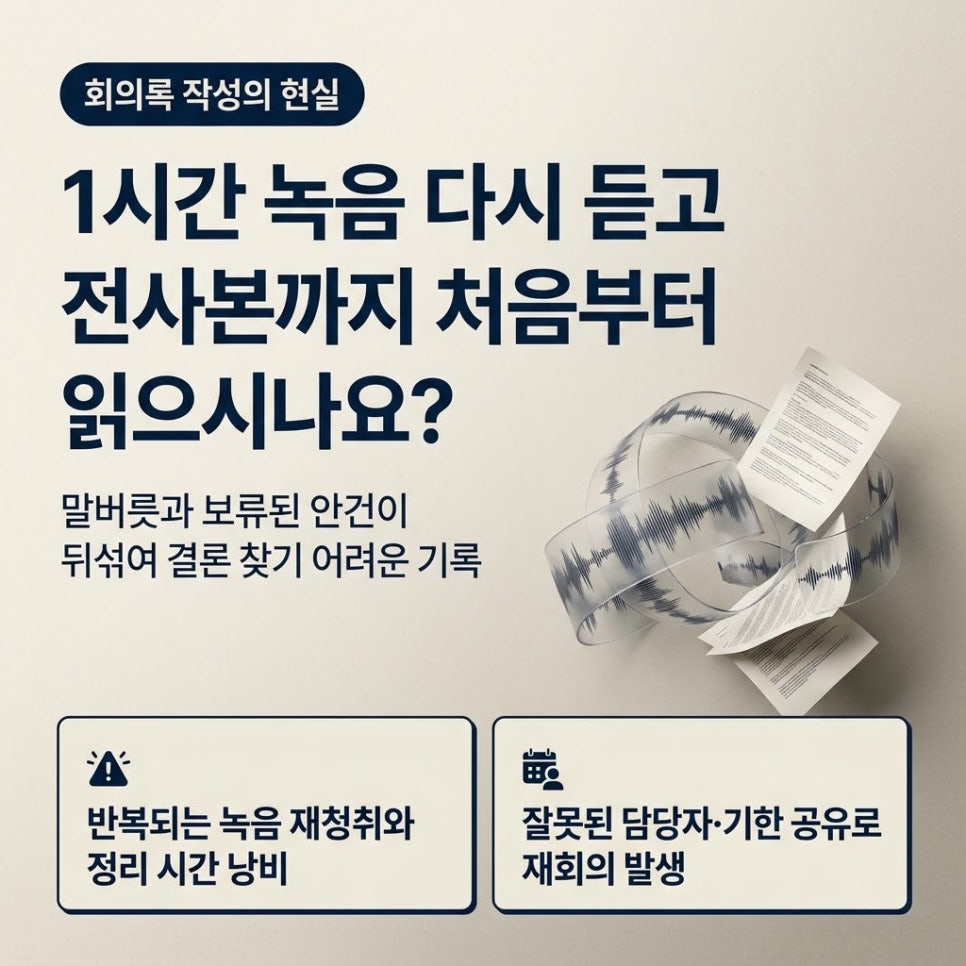
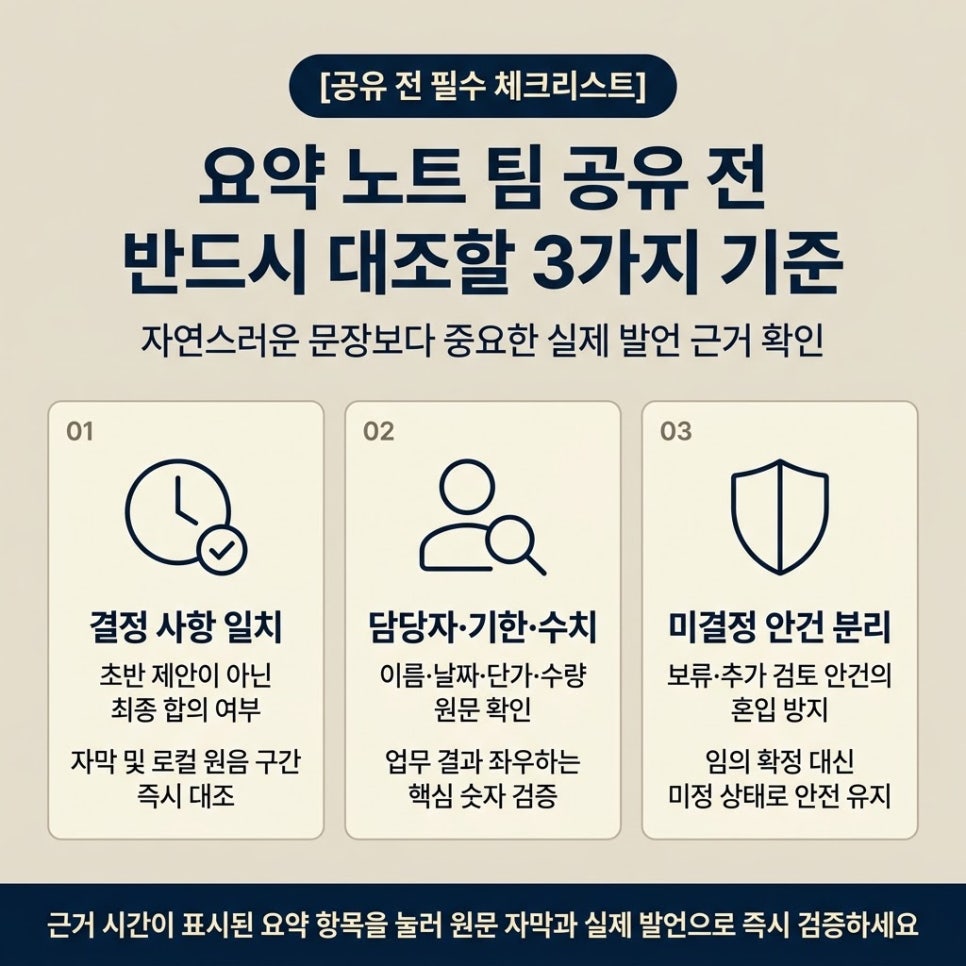
There are three criteria to check when choosing meeting notes and summary features. Can you jump from a summary item to the source caption and the matching part of the recording? Do the owners and due dates actually appear in what was said? And are items that are still undecided kept out of the decisions?
If you can't check these three things, a plausible-looking summary with the wrong owner or deadline can be shared with your team — and another meeting gets booked just to fix it.
1. Why a raw transcript rarely works as meeting minutes
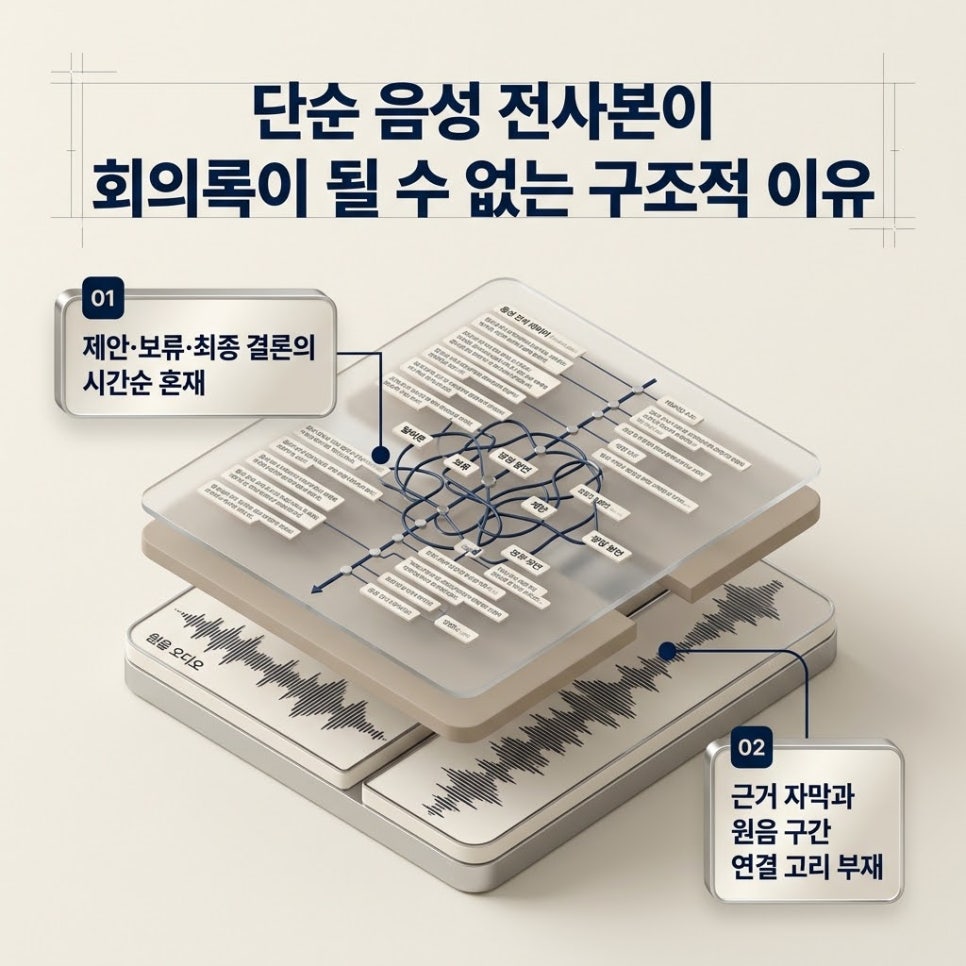
A transcript that turns speech straight into text keeps every filler word and repetition. Proposals, holds, corrections and the final conclusion are all recorded in time order, so the reader has to pick out the decisions again. Reading the whole transcript can take about as long as replaying the recording.
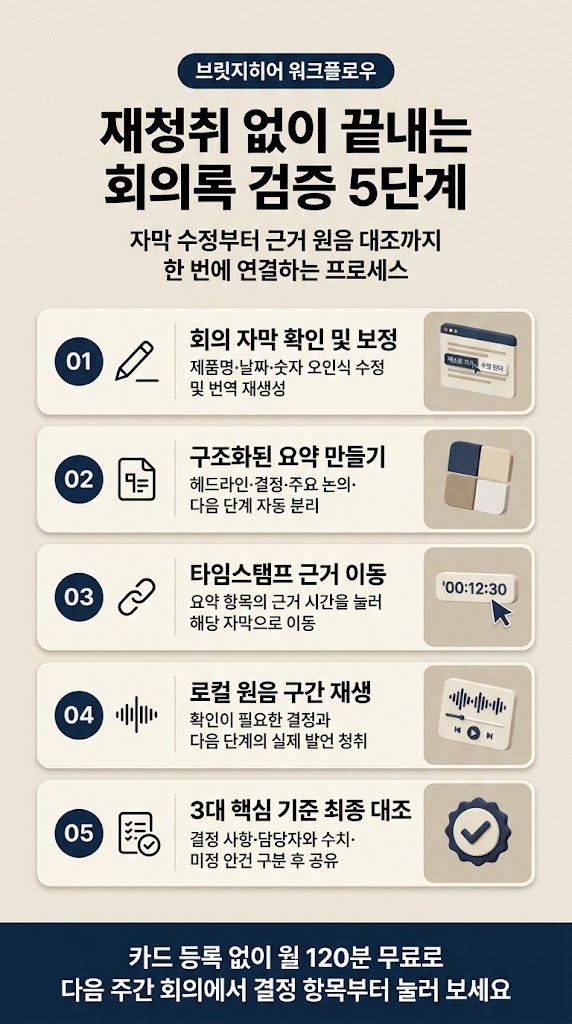
In BridgeHere, tap “Create summary” after the meeting to get a note built from the captions and split into headline, decisions, key discussion and next steps. Next steps list the work that follows the meeting, along with owners and due dates if they were mentioned.
Tap a summary item with a source time to jump to that caption, and if the local recording is still on your PC, listen to what was actually said at that moment. Instead of stopping at the summary, you can review important decisions and next steps against the original.
2. How summary items link back to captions and the recording
After the meeting, review the captions in your BridgeHere note first. If a product name, date or number was misheard, fix that caption before creating the summary and regenerate the translation if needed.
Once the captions are checked, tap “Create summary” to see the result split into headline, decisions, key discussion and next steps. Tap an item with a source time to jump to its caption, and play back the original audio for that part if the replay recording is still on the same PC.
Rather than replaying the recording from the start, you pick the lines in the decisions or next steps that need checking and jump straight to what was said.
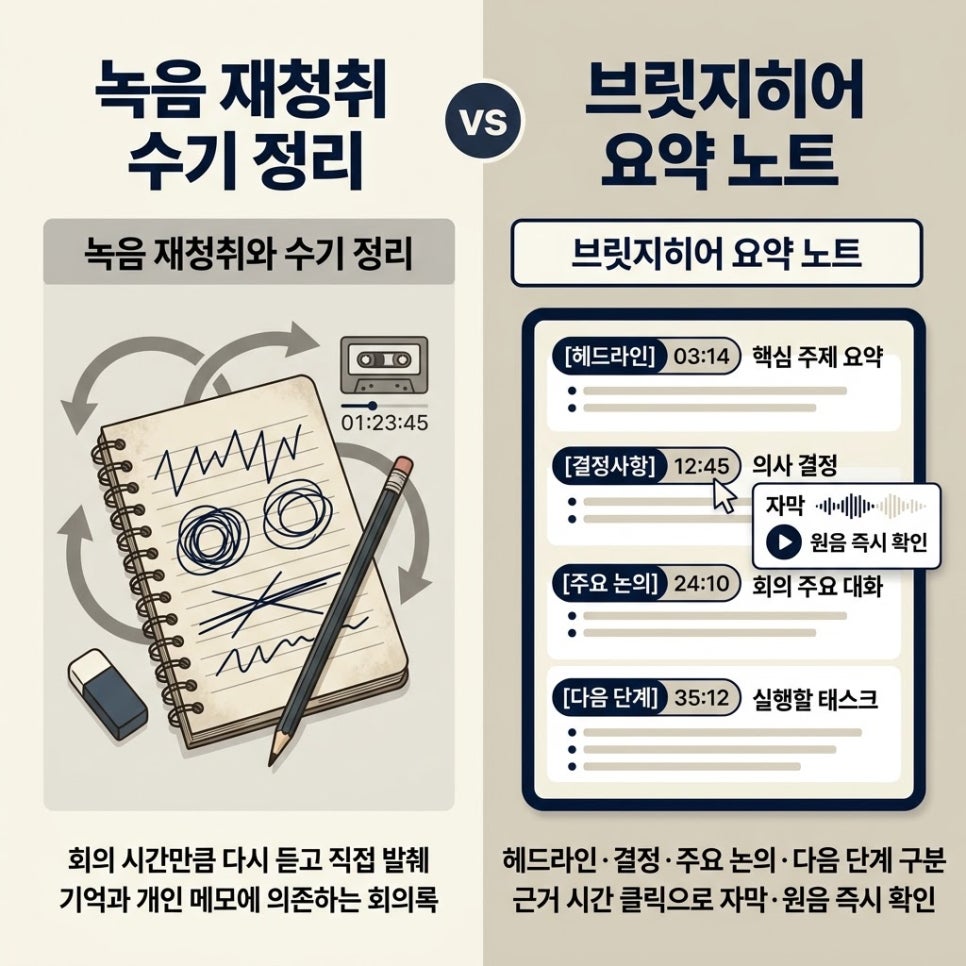
Replaying and writing it up by hand
- Time spent: replay the whole meeting and extract decisions and next steps yourself
- How you check: memory and personal notes
- What you end up with: minutes that vary by who wrote them
BridgeHere summary notes
- Time spent: review captions after the meeting and create a summary
- How you check: captions and original audio from items with a source time
- What you end up with: a meeting note split into decisions, key discussion and next steps
3. Three things to check before you share a summary note
First, the decisions. Check that tapping a decision takes you to its caption. If you have the local recording, confirm that what you hear in that part means the same thing as the summary. Also make sure the final agreement is reflected, not a proposal made early in the meeting.
Second, owners, deadlines and figures. Check that names, dates, unit prices and quantities — anything that directly affects the work — actually appear in the captions. A sentence can read naturally while one number is wrong, so compare it with the original before sharing it with your team.
Third, anything still undecided. Make sure items that need more review or were pushed to the next meeting haven't slipped into the decisions. If no owner or deadline was set, leave it open and confirm it next time rather than filling it in.
- Q1.Can't I just get a transcript and write it up myself?
- A1.You can, but you still have to separate decisions from holds yourself, so it may not save much time. Picking the final conclusion out of filler words and repetition isn't very different from replaying the recording. If you start from the decisions, key discussion and next steps in a BridgeHere summary note, you review the important items instead of writing minutes from scratch.
- Q2.I'm worried an automatic summary will include things that weren't said.
- A2.Don't assume automatically generated results are perfectly accurate. Tap a summary item with a source time to jump to its caption, and check the original audio for that part if you have the local recording. Compare anything that affects real work — owners, deadlines, prices — with the original before sharing.
- Q3.How do I check if no owner or deadline was set in the meeting?
- A3.Tap the item in next steps and check whether an owner and deadline were mentioned in the captions. If no name or date was clearly stated, leave it open rather than assigning one yourself.
Confirming that nobody has been assigned yet is also an important job of meeting minutes. The real reason you end up replaying recordings isn't a lack of records — it's having to separate decisions from holds inside the transcript again.
BridgeHere splits meeting captions into headline, decisions, key discussion and next steps, and links items with a source back to the actual captions and audio. What to verify isn't how natural the summary sounds, but whether you can check that owners, deadlines and figures were actually said.
Run your next weekly meeting within the Free plan's 120 minutes a month — no card required — and start by tapping the decisions when it ends. Whether you can jump straight to the line you need, instead of replaying an hour of audio, is what decides how long your minutes take.