
AI translation of technical terms: a CSV glossary to stop product names and acronyms being mistranslated
Ever seen your internal code name translated into an ordinary dictionary word in a global team meeting? When one internal acronym turns into a different word in every meeting, whoever receives the minutes may think you meant a different product or version.

Technical-term translation comes down to three criteria. If you pair a term with its target term in advance, does the translation stick to it? Are terms added or edited during the meeting applied to the translations that follow? And can you confirm the same spelling from the original captions all the way to the summary note?
If a product name comes up 20 times in a 60-minute meeting and 5 of those are translated as a different word, the other side hears about a different product one time in four.
1. The smoother the translation, the more quietly your acronyms change
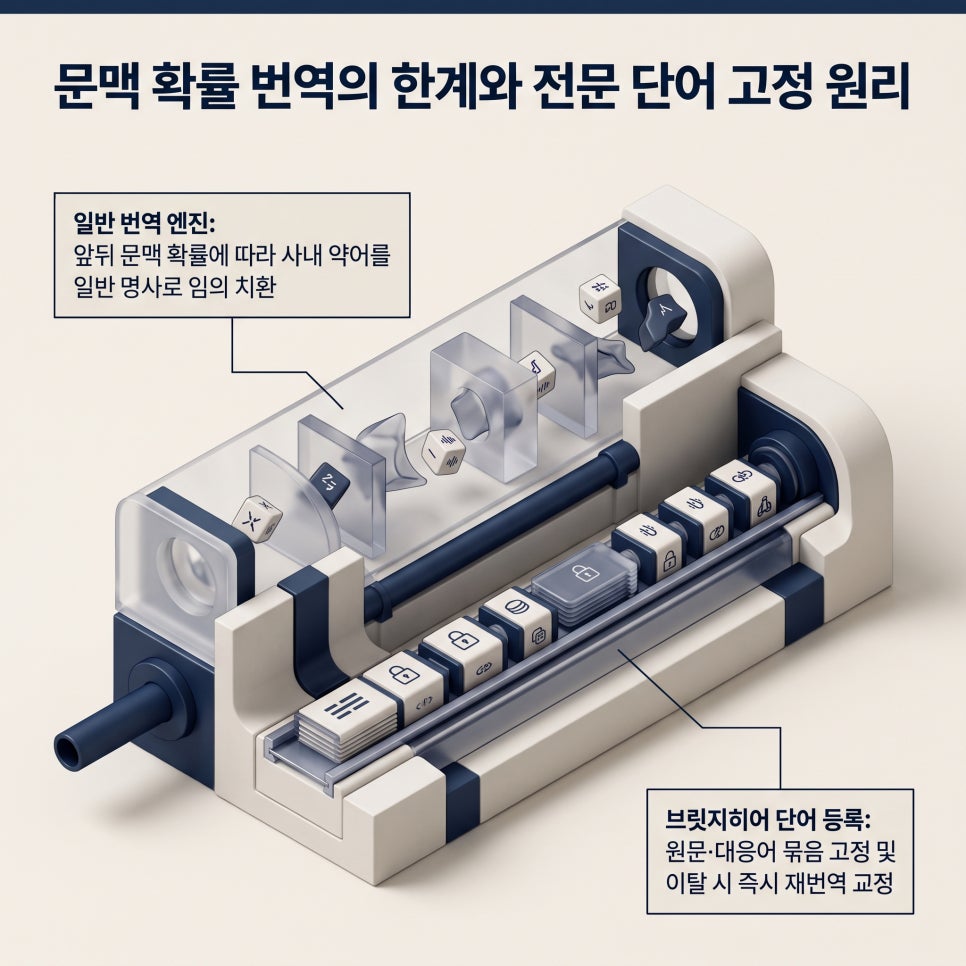
Translation engines choose words based on the surrounding context and the expressions they've learned. Internal code names and acronyms that rarely appear in general documents can be read as similar everyday words, or translated differently depending on context. Because the sentence still reads smoothly, the error easily goes unnoticed.
BridgeHere's glossary (custom terms) claims that spot first. Save a term and its target term as a set, and the translation uses that target term — and if it doesn't, the sentence is translated again to correct it. You can upload sets in one go as a CSV, and add or change terms during the meeting too.
2. How to load a glossary, and what happens during the meeting
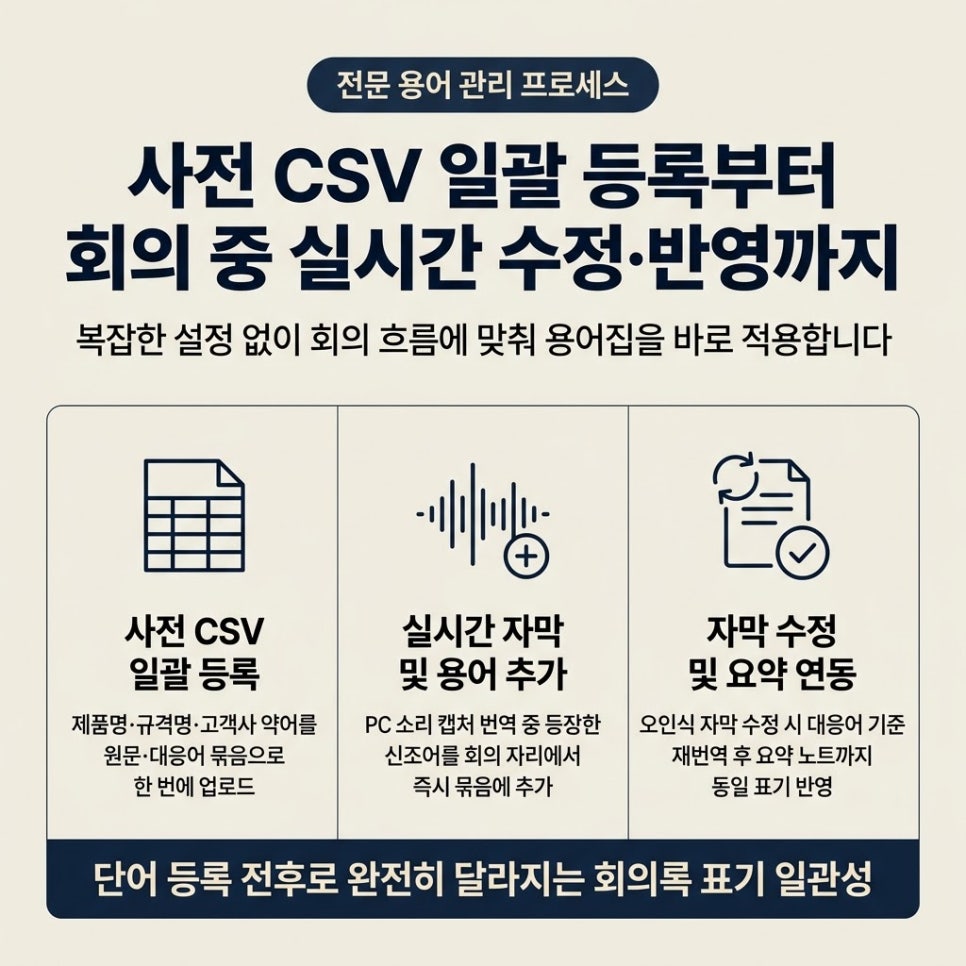
Before the meeting, add product names, spec names and client acronyms to the glossary — if there are many, upload them at once as a CSV of source and target terms. When the meeting starts, captions flow from your PC audio, and live translation follows as the app detects the spoken language within the meeting languages you chose. If a new term comes up, add it to the set on the spot; fix a misheard caption and the translation is regenerated and carried into the summary.
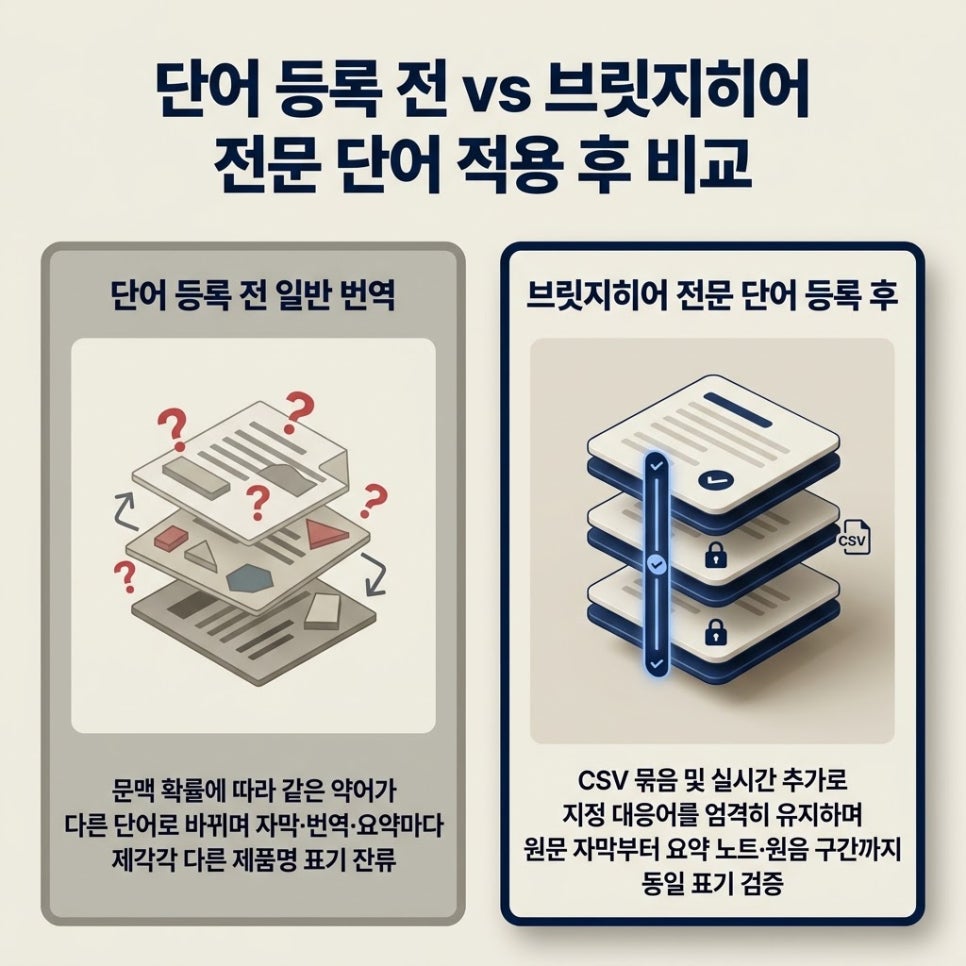
Before adding terms
- The same acronym may be translated differently depending on context
- Product names may not be told apart from common nouns
- Captions, translations and summaries may end up with different spellings
After adding terms (BridgeHere custom terms)
- Registered terms come out as the target term you set
- Bulk CSV upload, plus adding and editing during the meeting
- Translations that break the target term are translated again and corrected
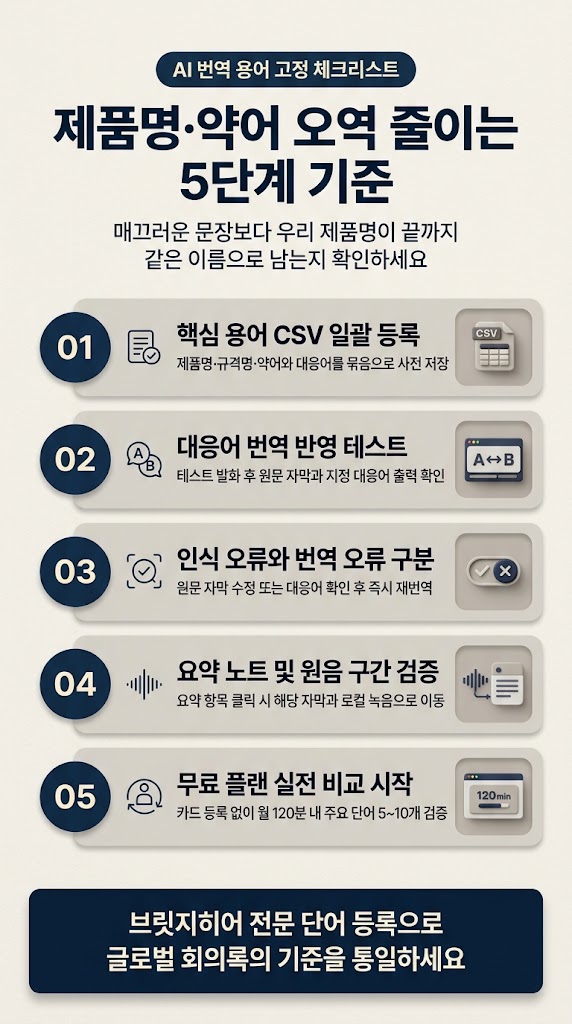
3. Three steps to check your terms hold to the end
First, check that registered terms show up in the translation. After adding them, say a sentence containing the product name in a test session and look at the term in both the original caption and the translation.
Second, tell speech-recognition errors apart from translation errors. If the original is already wrong, it's a recognition error — fix the original. If only the translated word differs, check whether the target term was applied and translate again.
Third, check that the corrected spelling carries through to the note and the summary. After fixing it, see whether the note uses the same product name, and whether tapping a summary item takes you to its caption and the local recording.
- Q1.Why is the same acronym right one day and wrong the next?
- A1.Because translation engines choose words by probability. When the surrounding sentences change, so do the probabilities, and the same acronym comes out as a different word. Pairing it with a target term keeps it from changing day to day.
- Q2.What do we lose by putting off adding terms?
- A2.The same product ends up in the minutes under two or three names. When those minutes move on to quotes and spec sheets, every one adds another email asking which spelling is correct.
- Q3.If a mistranslation still gets through, what do I check against?
- A3.The original text in the captions. If the original is wrong, fix the caption; if only the translated word differs, check the target term and translate again. With the local recording, you can listen to that part to tell a recognition problem from a translation problem.
- Q4.Do I need to add terms for meetings with almost no jargon?
- A4.Not necessarily, if the meeting is mostly everyday language. But if words like product, client or spec names come up repeatedly and cause confusion when they're wrong, start by adding the most important ones.
Technical terms drift less because of translation quality than because the engine can't know what the product names and acronyms your company defined actually mean. Check three things: that target terms are applied, that terms edited mid-meeting take effect right away, and that the spelling matches from the original captions to the summary note.
One of the most common questions we hear when people consider BridgeHere is “Can we add our own acronyms?” — so we've walked through the whole flow, from adding terms to fixing captions and checking summary sources.
Within the Free plan's 120 minutes a month — no card required — upload 5 to 10 product names you use often as a CSV and compare the translations before and after. What matters more than how smooth the sentence is: whether your product name keeps the same name to the end.